Amazon Now Requires Labeling AI-Generated People — Are Your Listing Images and A+ Content Compliant?

First, be clear about what this requirement actually covers
Amazon recently made it clear that if your Listing images or A+ content include realistic AI-generated humans, you need to use a metadata tool that supports the IPTC standard before uploading, and add the keyword contains-synthetic-performer to the file's dc:subject (XMP) field. After that, the platform may show the corresponding notice to customers where applicable.
This requirement covers two placements: Listing images and A+ content. You need to handle both.
There are a few cases that do not require action:
- The person in the image is a real human, even if AI was used for post-editing
- The character comes from an existing work such as a film, TV series, or game, for example a poster or cover image
- There is no person in the image at all
- The person is not sufficiently "realistic," such as a cartoon or illustration style
If you still cannot tell which of your images count as "AI-generated realistic humans," the safest approach is to treat them as high risk first. If it is not a real-life photo of a human, put it into the review scope first. That is usually much cheaper than being flagged for noncompliance later.
Step 1: Categorize your assets first. Do not start editing images right away

Before you change any image, sort the images currently used in your Listing and A+ content into three groups:
- Real-person photography
- Product-only images with no people
- AI-generated human images, or suspected AI composites whose source you cannot clearly confirm
The purpose of this step is simple. Amazon is specifically calling out "AI-generated humans" this time. If you do not group assets first, the easiest images to miss are the old A+ assets that have been sitting there for a long time and nobody is actively managing anymore.
Pay extra attention to these placements, where misses happen most often:
- Scene images after the main image
- Model showcase images
- Size reference images that include a person
- A+ brand story banners
- A+ lifestyle module images
Step 2: If the source is unclear, move the image straight into "redo"
Review each asset in the third group one by one:
- If you can confirm it is AI-generated and the source is clear, keep it and follow the labeling process
- If the source is messy and you cannot clearly tell whether it is AI-generated, replace it directly
- If the image relies heavily on a human figure but still does not communicate the product clearly, redo it at the same time
The risk of unclear-source images is not limited to whether they need a label. They also create trouble later during team collaboration and platform spot checks. It is better to clean them up now.
Step 3: Before generating new images, write down the product information clearly

Before generating AI human images, organize the following into a simple asset brief instead of typing one vague prompt into a tool:
- Product name
- 3 to 5 core selling points
- Target use scenarios
- Target user profile
- Content that must not appear
- Information that needs emphasis, such as material, functions, size, and accessories
The most common problem with AI image generation is this: "The image looks great, but after seeing it, nobody knows what the product is or what the key selling points are." Structuring this information first helps the generated images match your Listing copy directly, instead of leaving the visuals and copy disconnected and forcing you to revise both back and forth later.
If you try to align every detail manually and then adjust images one by one, this step takes quite a bit of time. That was also one of the starting points when we built Niceggie AI Listing: input those structured details once, then generate scene images and human images that fit the product selling points, without repeatedly tweaking prompts just to get close. This generation capability is already in use. Later in this article, we will mention a feature we are working on that has not launched yet.
Step 4: Keep a generation record. Do not leave yourself with only the final image
When generating AI human images, it is a good idea to record these at the same time:
- Generation date
- Tool or version used
- Final exported filename
- Whether the image is used in the Listing or in A+
This does not need to be complicated. A spreadsheet is enough. When your team reviews work later, or when the platform asks for a self-check, having records versus only having a JPG left are two very different situations in terms of recovery cost.
Step 5: This is the easiest step to miss, and it is the actual compliance action
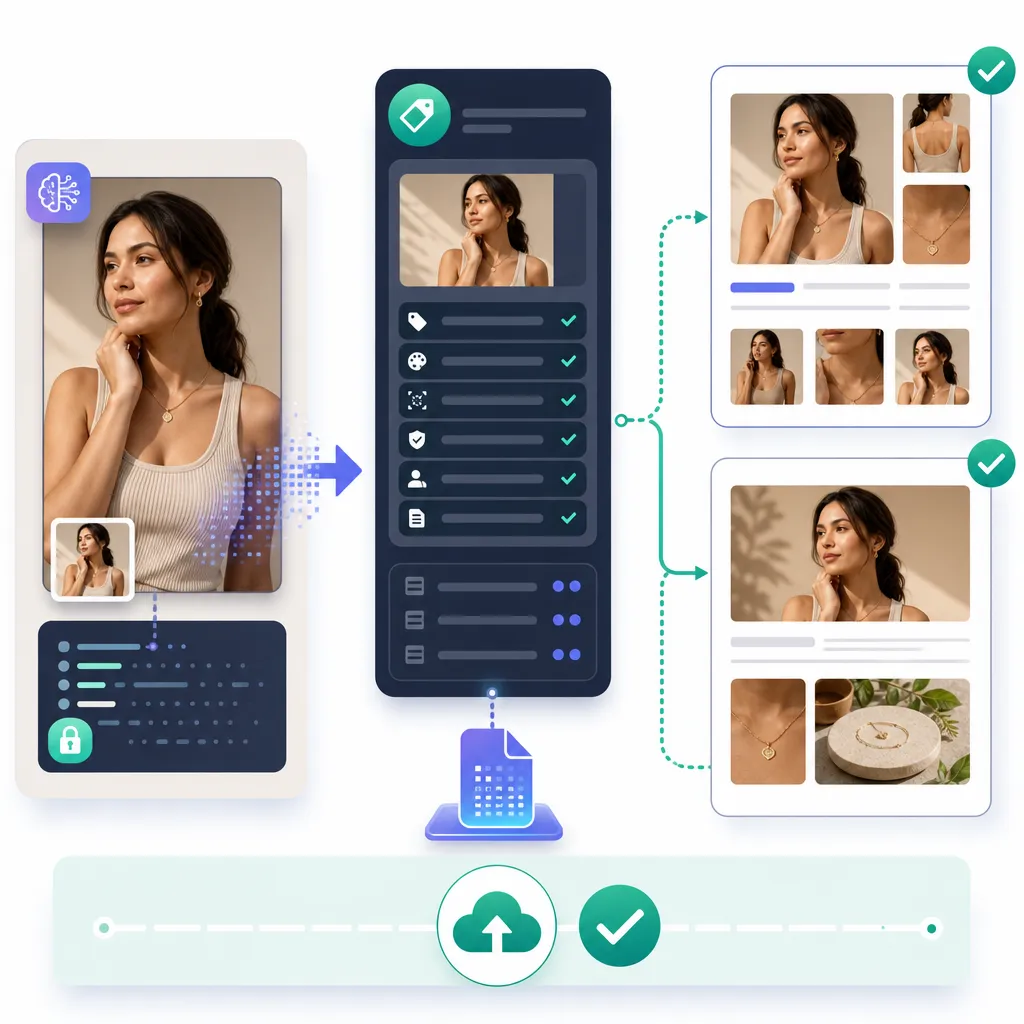
Even if you handled all the earlier steps well, picked the right images, and generated visuals that match the selling points, skipping the step below makes all that work pointless: apply the correct label to AI-generated human images in Amazon's backend.
In practice, most sellers currently do this fully by hand. You need to use a separate IPTC-compatible metadata tool, apply the contains-synthetic-performer label to each image, and then upload it. This is completely separate from "generating the image" itself, so it is easy to miss when work gets busy, especially during bulk launches.
We have also been thinking about this: since the image is AI-generated in the first place, the system already "knows" at the moment of generation whether the image contains a realistic human. In theory, it should be possible to write the corresponding metadata label directly into the exported file at the same time, so sellers would not need to open another tool and add it manually. We are still evaluating the most reliable way to build this feature. If this step slows you down often and you want to raise your hand for it, there is a simple form at the end of the article. If you want early access or have thoughts on this direction, leave your contact details there. We plan to work with a first group of real sellers to refine it.
Whatever form this feature eventually takes, for now, you still need to complete the required labels through the standard process. Do not wait for a tool. Label the images that need labeling according to Amazon's current requirements.
Pay special attention to these two places:
- Listing image editor
- A+ content editor
Updating only the Listing and missing A+ is the most common mistake we are seeing right now. Public guidance clearly states that both placements are covered.
Step 6: After updating the images, review the copy as well
After the labeling is done, review the title, selling points, and image descriptions together:
- Does the title still accurately reflect the product positioning?
- Do the bullet points cover the functions shown in the new images?
- Does the A+ copy exaggerate anything or describe scenarios that do not match the images?
- Are filenames, alt-text logic, and internal team notes consistent?
Many page problems are not about whether you have images. The issue is that the images changed but the copy did not, leaving buyers confused.
Step 7: Do one final check before publishing
Run through this checklist before submission:
- Have all AI-generated human images been identified?
- Have the Listing images been labeled where required?
- Has the A+ content been labeled where required?
- Do the new images match the title, selling points, and A+ copy?
- Have generation records and version notes been saved?
The same SKU often has several editing entry points. Missing one location is the most common reason for rework.
Common mistakes
1. You updated only the Listing and forgot A+ The main image set was updated, but the lifestyle images in A+ are still old assets. Go back to the asset list and filter again by "placement used" to confirm that A+ banners, comparison charts, and scene images have all been checked.
2. Different team members replaced images separately, and nobody can explain the source Design, operations, and outsourced partners each kept different versions, and the source became unclear. Standardize naming and record fields. If the source is unclear, move the image directly into high-risk replacement instead of gambling on review interpretation.
3. The images changed, but the copy did not The title and selling points are still the old version, so the page contradicts itself. Every time you replace images, at minimum check the title, bullet points, and A+ copy once as well.
What to add next
After finishing this round, it is a good idea to do two things:
- Create an "AI human asset checklist" that can be reused for every new product later
- Turn image generation, copy review, and backend labeling into one fixed workflow instead of trying to remember them ad hoc every time
If you are also frustrated by having to handle "image generation" and "manual labeling" as two separate tasks and go back and forth between them, feel free to leave your contact details and contact us at support@niceggie.com. We want to work with a group of sellers who actively publish new Listings and see whether "automatic labeling during generation" is actually useful in practice.
FAQ
What exactly needs to be labeled this time? The core target is realistic AI-generated humans, and it covers both Listing images and A+ content.
Do pure product renderings need to be handled too? This requirement, as discussed here, concerns images with people in them. If there is no person in the image, whether it applies depends on the actual use case and Amazon's backend guidance. If you are unsure, review it first as high risk.
Why should I audit old assets first? The easiest things to miss are old images and historical versions inside A+. Group assets first into "real-person photography, product-only, and AI humans," and the later steps will move much faster.
Is it enough to label only newly uploaded images? No. AI-generated human images that already exist in older Listings or A+ content should be checked as well. Do not focus only on new assets.