Auto-Reply Rules Setup
Recurring questions no longer need you. Put them on an auto-reply rule: AI answers from your knowledge base, or a fixed message template replies. Anything a rule doesn't match still waits for your confirmation in the workbench. Auto-reply rules are open to every Niceggie account — nothing to enable.
Get the knowledge base ready first
AI Auto-Reply only answers from what is in your knowledge base. Before turning a rule on, add your product information and after-sales policies on the knowledge base page. When the knowledge base has no answer, the rule sends a fallback reply you wrote and hands the thread to a person.
Where to find it
After signing in, open AI Customer Service → Automation Rules → Auto Reply in the top bar, or go straight to the Auto Reply page. Templates for fixed replies are managed under Message templates in the same menu.
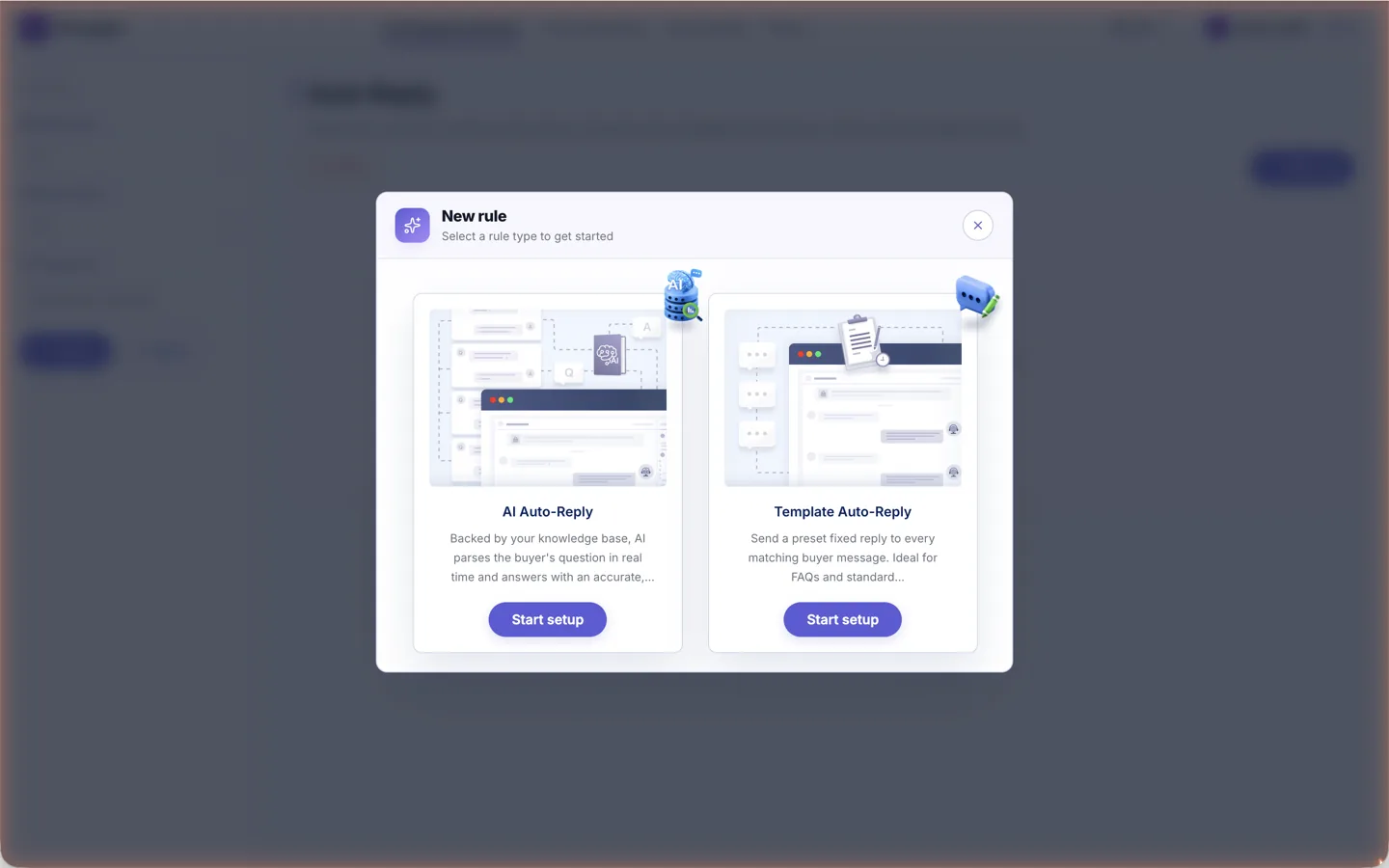
Two rule types
| Type | How it replies | Good for |
|---|---|---|
| AI Auto-Reply | AI reads the buyer's question in real time, drafts an answer from your uploaded knowledge base and sends it | Questions with a standard answer: delivery times, return policy, product specs |
| Template Auto-Reply | Sends one preset message template to every buyer message that matches the conditions | Standardised cases: acknowledging receipt, out-of-hours notices, FAQ answers |
To avoid double replies, only one of the two types can be enabled for the same trigger conditions. If the conditions overlap with an existing rule when you save or enable, the conflicting rules are listed — adjust the conditions and save again.
Create a rule in three steps
Click New rule, pick a type and the wizard opens.
1. Pick the target
Auto-reply rules run on buyer messages (channel messages in the message view) and only on messages received after the rule is on — earlier conversations are not touched.
2. Set trigger conditions
Tick a condition and fill in its values; at least one is required. With several conditions, choose match all or match any:
- Channel store — only messages from the authorized stores you pick
- Inquiry type — presales / after-sales / other
- Sentiment — very positive, positive, neutral, negative, very negative. For example, keep negative and very negative messages out of auto-reply and leave them to a person
3. Configure the action
- Reply strategy:
- Knowledge-base reply — AI analyses the question and drafts from your knowledge base first (required)
- General-purpose reply — when on, greetings, thanks and sign-offs that need no product knowledge are also answered by AI
- Max reply rounds — 1 to 3. Once reached, the rule stops replying and the conversation goes to a person
- Fallback reply — sent automatically when the knowledge base has no answer, e.g. "I've noted your question and a support agent will follow up shortly." After a fallback reply the rule stops replying in that conversation
- Reply hours — always on, weekends only, or a time window with a timezone and start / end time
- Reply content — pick a message template or create one here; Manage templates opens the Message templates page
- Reply hours — the same options as AI Auto-Reply: always on, weekends only, or a time window
New rules are enabled by default. After saving, you are asked whether to send a test message right away.
Verify in the test sandbox
Click Test in the rule list, or Test now right after creating a rule:
- Type a message the way a buyer would and click Send
- In the conversation pane, see whether the auto-reply fired and the reason for each reply — answered from the knowledge base, general-purpose reply, fallback sent, AI judged no reply needed, max rounds reached, outside reply hours, and so on
- To skip the reply-hours restriction while testing, turn on Ignore time conditions (applies to new test sessions only and never changes the live rule)
Test conversations never reach real buyers and are not written into real threads.
Message templates
AI Customer Service → Automation Rules → Message templates holds the fixed content used by Template Auto-Reply:
- Each template has a name, body and tags, and can be searched by any of them
- Insert system variables into the body: order channel, store name, buyer name, channel order number, order date, order status, order amount, shipping address, tracking numbers, channel return number, return reason, refund amount, return type, return request date, order item title. They are replaced with the conversation's real data when sent
- Switch to AI-generated template, describe what you need and pick the output language; edit the result before saving
- System templates are read-only. Deleting a template that rules still reference prompts you to disable those rules instead
After the rule is running
- The rule list shows each rule's status, run count, last update and editor; toggle, edit or bulk-delete at any time. A disabled rule stops immediately
- Rules apply to new messages only; after an edit, newly received messages follow the updated rule
- The rule stops replying and hands the thread to a person when the max reply rounds are reached, when the previous reply was the fallback, or when AI cannot generate a reply. Those conversations stay in the workbench's To reply folder
FAQ
Do auto-reply rules cost extra or need to be enabled?
No. Auto-reply rules are open to every Niceggie account. After signing up, create them under AI Customer Service → Automation Rules in the top bar — nothing to apply for and no plan upgrade.
Can AI Auto-Reply and Template Auto-Reply run at the same time?
Yes, but only one of them can be enabled for the same trigger conditions, otherwise a buyer message would get two replies. A common setup is AI Auto-Reply for presales questions and a Template Auto-Reply out of hours that states when someone will follow up.
What if the AI answers wrongly? What's the safety net?
AI Auto-Reply only answers from your knowledge base. When there is no answer, it sends the fallback reply you wrote and hands the thread to a person, and it also stops after the max reply rounds (1–3). Before turning a rule on, run a few likely buyer messages through the test sandbox and check that the reason for each reply is what you expect.
Does a rule apply to messages I already received?
No. Auto-reply rules only handle buyer messages received after the rule is enabled; earlier conversations still need a manual reply in the workbench.