Care Email Setup
Usage instructions after purchase, shipping notes, a heads-up that a multi-package order arrives in parts — stop writing them one by one. Create a care email rule, and whenever a new order matches your conditions, Niceggie sends your email template to the buyer from your authorized support address.
Who can use this
- Channels: Amazon (Amazon.com, Amazon.ca), eBay (eBay.com), Newegg (Newegg.com, NeweggBusiness.com, Newegg.ca)
- Before you start: stores connected in AI Customer Service, and a support address already registered in the channel's seller console connected by following the email authorization guide — it becomes the sender
- Amazon FBA orders: due to an Amazon policy change, buyer email addresses are no longer available for FBA orders from February 2026, so care emails can only go to FBM orders
For order communication only — no review requests, no marketing
Care emails must follow each channel's buyer–seller communication rules: use them only to complete an order or respond to the buyer, never to ask for reviews, and never with marketing or promotional content. You confirm this with a checkbox when you create a rule. Amazon has tightened its review of proactive messages; if yours are often blocked for "suspected communication policy violations", first make sure the sender is the official support address configured in Seller Central, then check the content against Amazon's communication guidelines.
86 seconds: a care email rule, built and tested
Product demo · 1:26 · English narration and on-screen copy; rules, orders and addresses are sample data. It uses the same three-step wizard described below to send an assembly guide only to multi-package orders for products that need assembly.
What the video shows (text version)
- 0:00 · Care emails that go out on their own. Set the conditions once, and every new order that matches gets the right email.
- 0:06 · Amazon reviews proactive messages closely, so send them from your official support address.
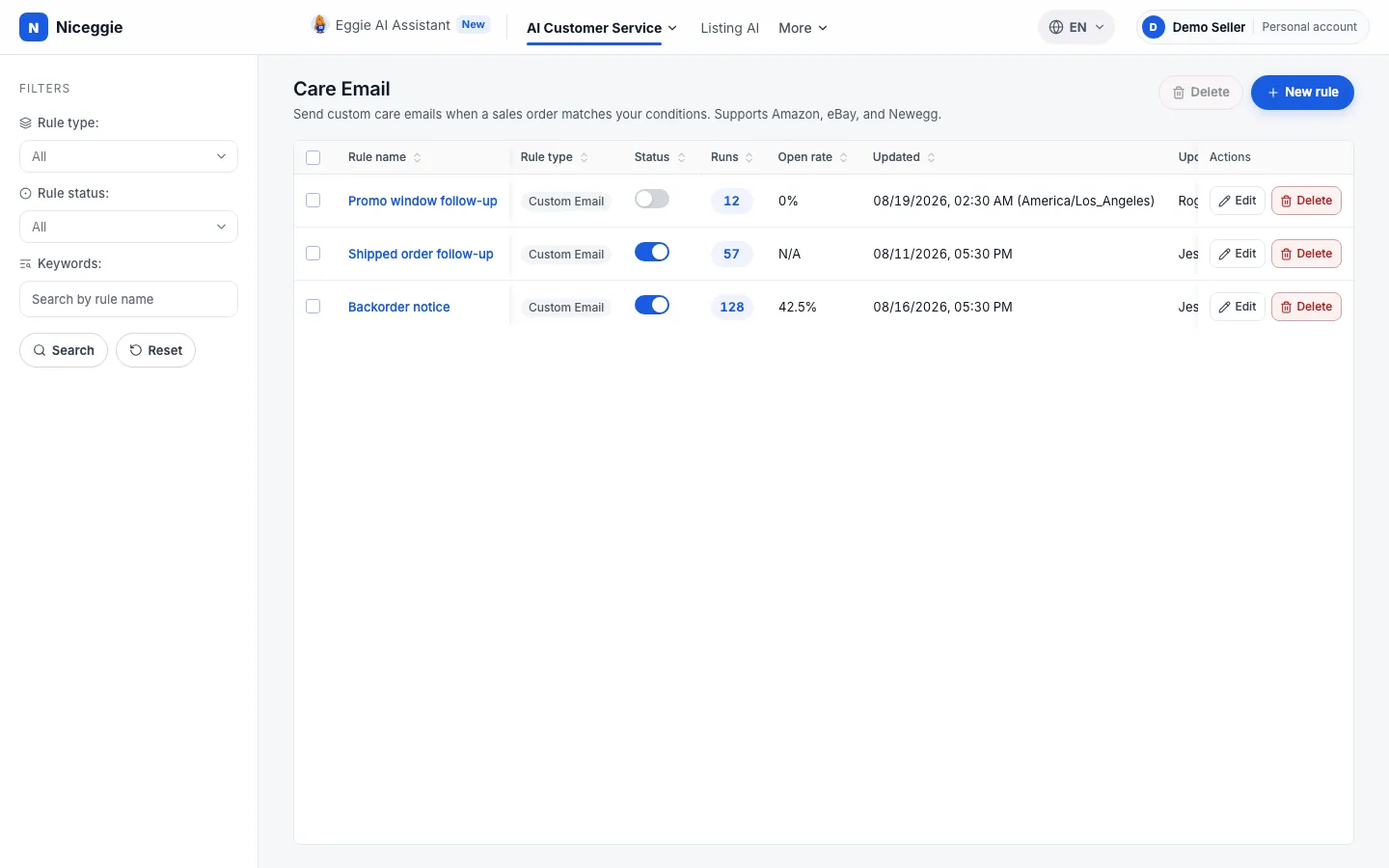
- 0:12 · Every care email rule sits in one list, with its runs and open rate.
- 0:18 · Step one. Name the rule. It only runs on new sales orders.
- 0:24 · Step two. Choose which orders get the email.
- 0:27 · Only for the products that need it.
- 0:30 · And only when the order ships in several packages.
- 0:33 · The rule preview spells out exactly what you set.
- 0:39 · Step three. Pick the email template, and the address it comes from.
- 0:44 · Send it right away, or up to thirty days later, if the order still matches.
- 0:49 · In test mode, emails go only to your test address, never to buyers.
- 0:53 · Care emails are for order communication only. Never use them to ask for reviews.
- 1:01 · Save, and the new rule is live in the list.
- 1:06 · Every email is logged: sent, skipped, and failed.
- 1:09 · Skipped orders tell you why, like an F B A order with no buyer email.
- 1:14 · Email templates fill in the buyer, the order, and the tracking number for you.
- 1:22 · Care Email, in Niceggie A I Customer Service.
Where to find it
After signing in, open AI Customer Service → Automation Rules → Care Email in the top bar, or go straight to the Care Email page. Email content is managed under Email templates in the same menu.
The care email list shows each rule's type, status, Runs, Open rate, last update and who updated it. You can switch rules on and off, edit them or delete several at once.
Create a rule in three steps
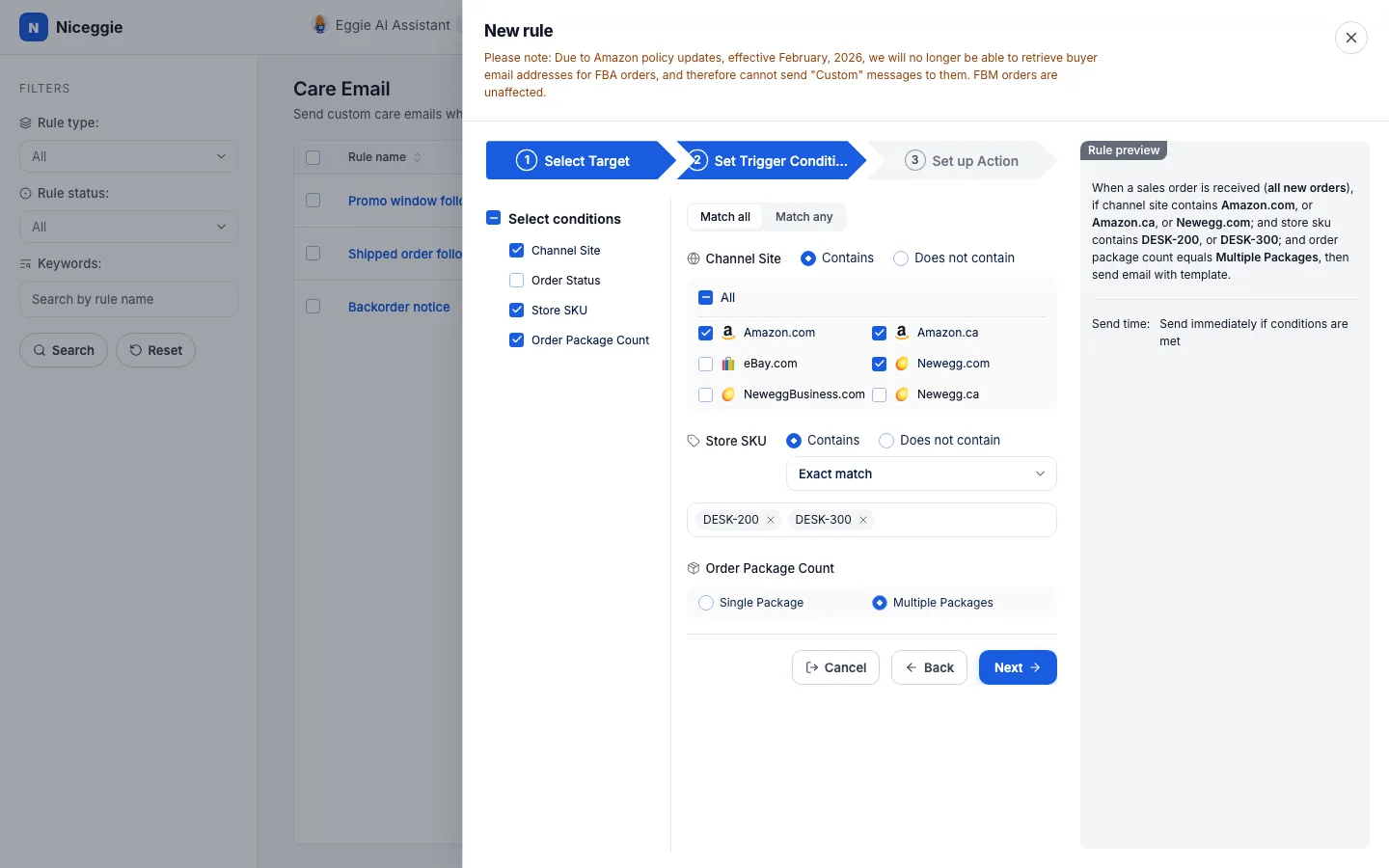
Click New rule and the three-step wizard opens. The Rule preview on the right turns your settings into one sentence as you go ("When a sales order is received … then send email with template"), so you can check it before saving.
1. Select Target
Start with a Rule name (for example "Send the product manual"). The trigger is Sales Orders, and a rule only applies to new orders — it never goes back over existing ones. Pick an order range:
- All New Orders: every order created after the rule is switched on
- Specific Timeframe: only orders placed within the date and time range you set — useful for limited-time promotions. Choose a time zone and the start and end; historical orders are not supported
2. Set Trigger Conditions
Tick at least one condition and fill in its value; each condition can be Contains or Does not contain, and with several, choose Match all or Match any:
| Condition | Values |
|---|---|
| Channel Site | Amazon.com, Amazon.ca, eBay.com, Newegg.com, NeweggBusiness.com, Newegg.ca |
| Order Status | Pending, To-Ship, Shipped, Voided |
| Store SKU | Exact match or starts with; separate several SKUs with commas. For example, send a setup guide only for a product that needs assembly |
| Order Package Count | Single Package / Multiple Packages. For example, tell buyers of a multi-package order that parcels will arrive separately |
3. Set up Action
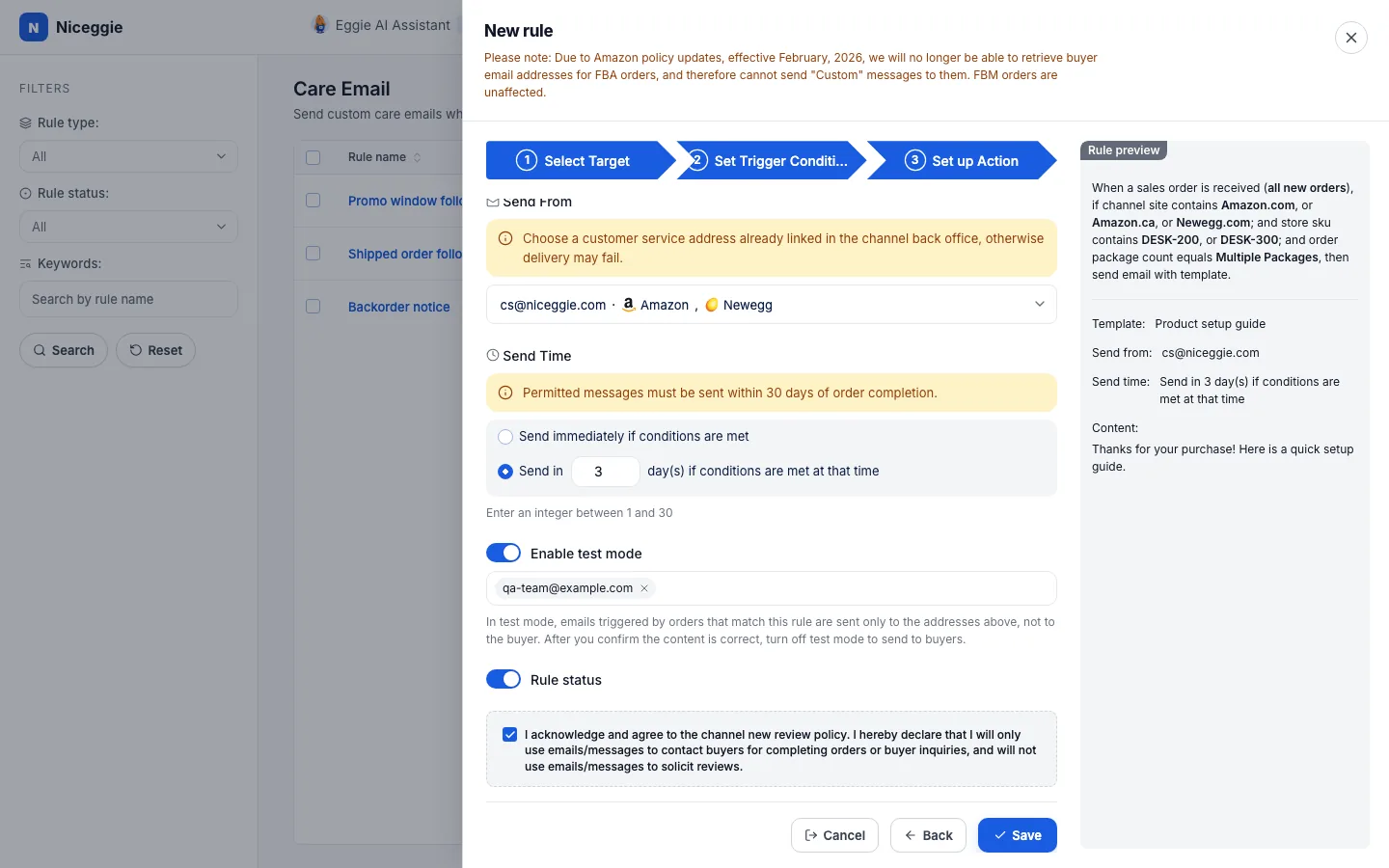
- Template: pick an email template, or click New template to write one on the spot or Manage templates to open the email templates page. The rule preview shows the template's content
- Send From: pick one of your authorized support addresses — each shows the channels it is linked to. Choose an address already registered in the channel's seller console, or delivery may fail
- Send Time: Send immediately if conditions are met, or Send in N day(s) if conditions are met at that time (N is a whole number from 1 to 30). Permitted messages must go out within 30 days of order completion
- Test mode (optional): add one or more test addresses, and emails triggered by matching orders go only to those addresses, not to the buyer. Once the content looks right, switch test mode off to start sending to buyers
- Communication policy: tick the confirmation that emails are only used to complete orders or answer buyer questions, not to solicit reviews — the rule cannot be saved without it
- Rule status: new rules are on by default; you can leave it off and switch it on once you're sure
A rule that sends immediately takes effect about 5–10 minutes after you save it; edits only apply to orders that come in afterwards.
Email templates
AI Customer Service → Automation Rules → Email templates holds the content care emails send:
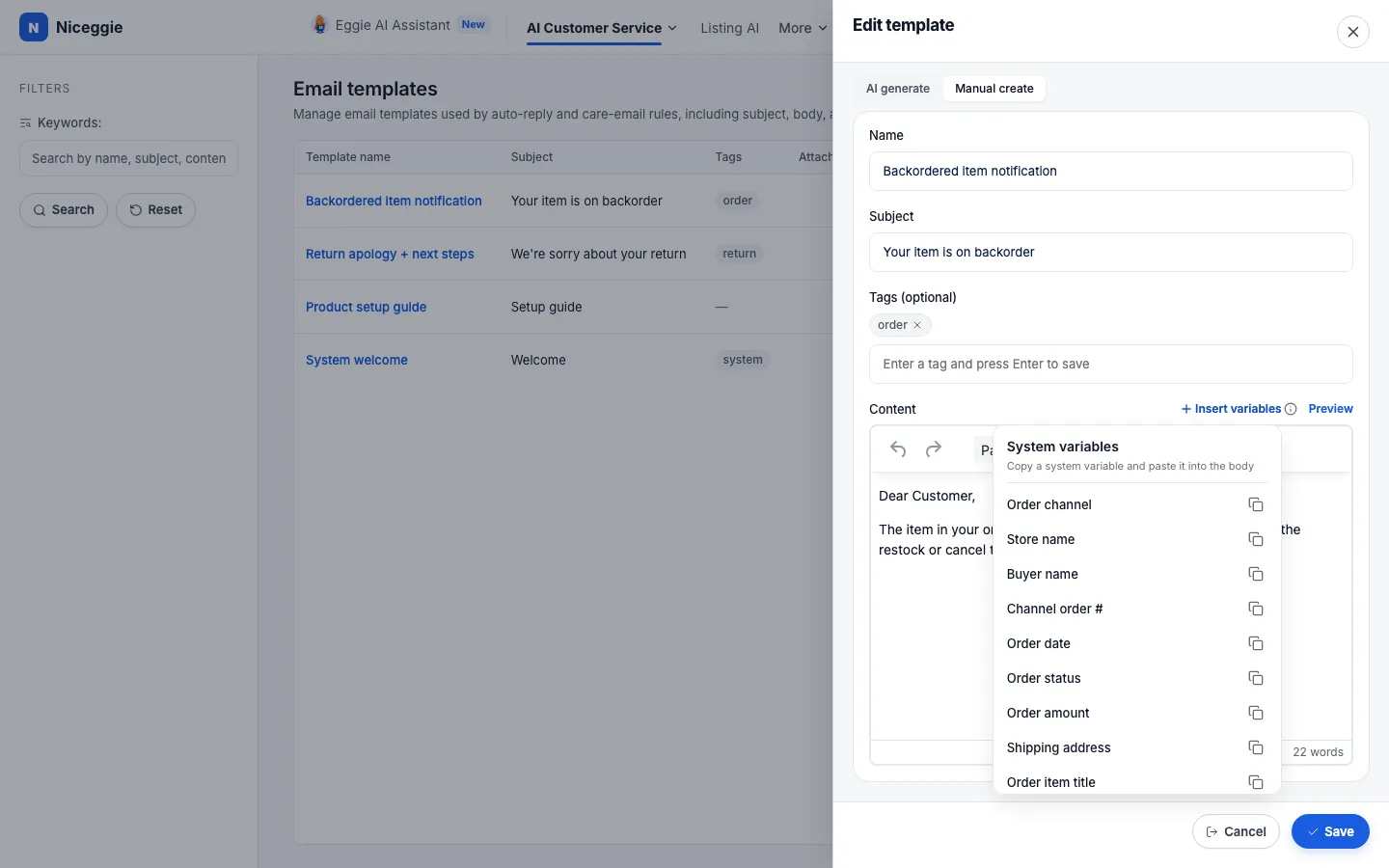
- Each template has a name, subject, body and tags; search by name, subject, body or tag
- Insert variables into the body — order channel, store name, buyer name, channel order number, order date, order status, order amount, shipping address, tracking numbers (combined), order item title and more. They are replaced with the order's real data when the email is sent; Preview shows an example
- Or switch to AI generate, describe the email and choose the output language (English by default), then edit what AI writes
- System templates are read-only and can be used as they are
Write in the buyer's language
Write the email in the language of the store's marketplace — for French-speaking buyers on Amazon.ca, for example, create a separate rule and template. When you mention a specific order or product, include the order number or product name.
Check what was sent
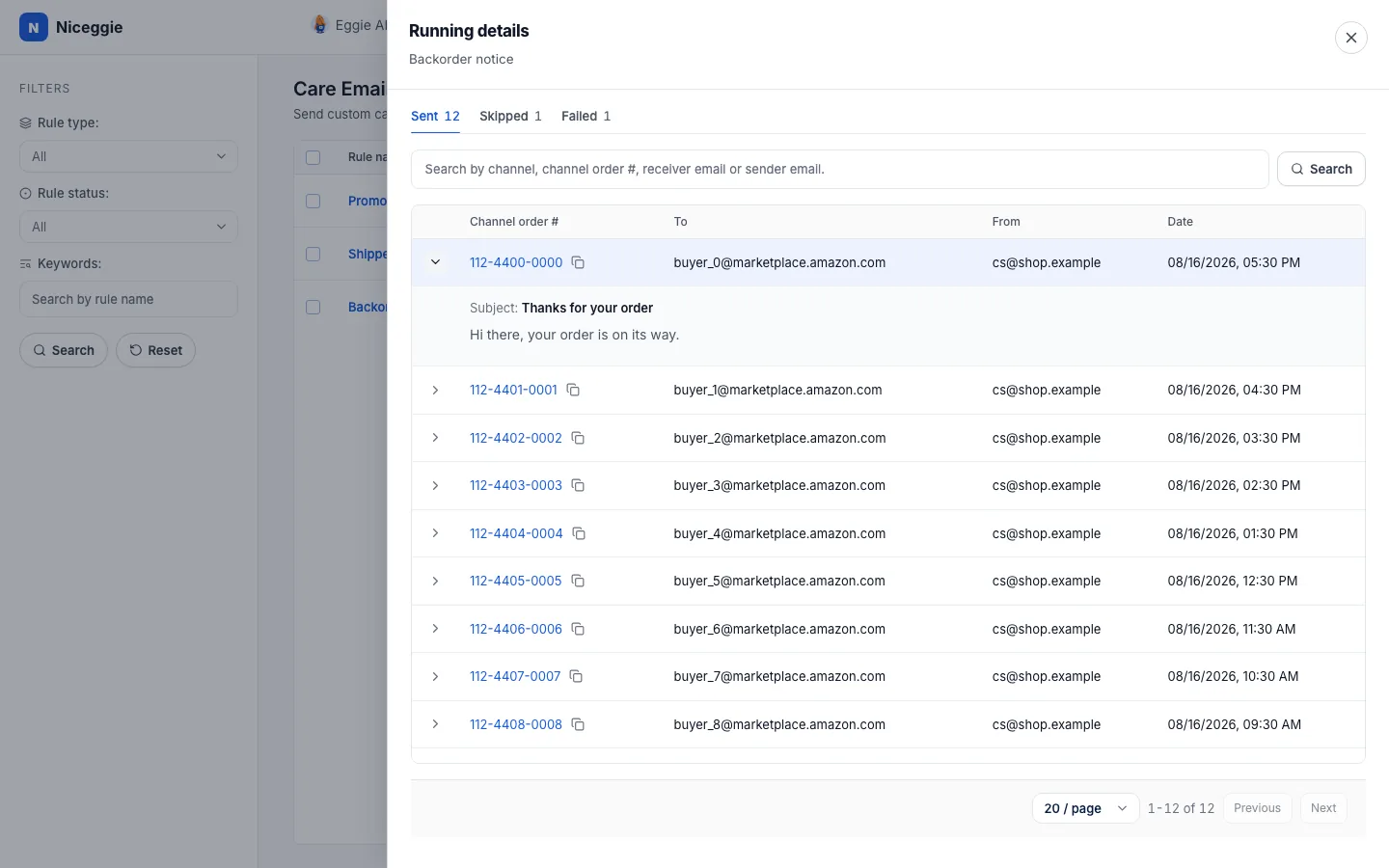
Click a rule's run count in the list to open Running details, which lists every email under three tabs:
- Sent: channel order number, recipient, sender and sent date; expand a row to read the subject and body
- Skipped: orders that got no email and why — for example, the order has no buyer email (common for Amazon FBA orders) or there is no usable recipient
- Failed: the reason, for example the channel doesn't support care emails, the email template no longer exists, or the mail service returned an error
Search by channel, channel order number, or recipient or sender address.
FAQ
Which marketplaces support care emails?
Sales orders from Amazon (Amazon.com, Amazon.ca), eBay (eBay.com) and Newegg (Newegg.com, NeweggBusiness.com, Newegg.ca). Orders from Walmart, Best Buy and TikTok Shop are not supported for care emails yet.
Why were some Amazon orders skipped?
Due to an Amazon policy change, buyer email addresses are no longer available for FBA orders from February 2026, so those orders are skipped with "Order has no buyer email"; FBM orders are not affected. The Skipped tab in the rule's running details shows the reason for every order.
Can I use care emails to ask buyers for reviews?
No. Care emails may only be used to complete an order or respond to the buyer — you confirm this when you create a rule — and must not contain marketing or promotional content, or the channel may block them.
Does a rule apply to existing orders?
No. Care emails only handle orders created after the rule is switched on; with Specific Timeframe, only new orders inside that range.
How do I see an email before buyers get it?
Switch on test mode in the action step and add test addresses. Emails triggered by matching orders go only to those addresses. Once you're happy, switch test mode off and the rule starts sending to buyers.